 H3cApp
Guide
Once your first video works, move on to image-based generation and batches in a project. This page follows H3cApp v0.6.0 with macOS set to English.
Making video from images
Choose “From images” at the top left of the panel, then one of two ways to use images. They mean quite different things, so pick by what you want.
| First/last image | Reference images, videos and audio | |
|---|---|---|
| What it does | Makes a video that starts from your image. Add a last image too and it leads into that. | Makes a new video that takes after the images, videos and audio (a person, a mood, a sound). The first frame is not necessarily the reference image. |
| Model needed | FL2VA (the one you download first) | Ref2VA (added later). With “Fast (int8 cache)” on an M5-class Mac, build a cache for Ref2VA too. |
| How to set it | Pick an image under “First image” and, if needed, “Also Set the Last Image…” | Add files with “Choose Files…”. They are used in the order added; to change the order, remove and add again. |
| Notes | Images are center-cropped to the shape being generated. | Audio alone can't be the only reference; combine it with an image or video. Large reference videos make generation much longer. |
Examples
- First image: use a landscape photo you took and bring it to life with a prompt like “clouds drift slowly, leaves sway”.
- Reference: add a character image as a reference and make a new scene with a prompt like “the character walks through a park”.
Click a file name in the prompt panel to see the image or video in use. A generated video can also be added as a reference with “Use as Reference” in the preview.
Matching a voice or song (lip sync)
Pick an audio file of a voice or a song, and the picture, such as mouth movements, is made to match it. The video's sound is that audio itself.
- Pick the audio. Click “Match a Voice or Song (Lip Sync)…” in the panel and choose an audio file (a video file with sound works too).
- Set where it starts. Enter the second to start from in the “s onward” field. As much audio as the video's length is used from there.
- Write the prompt and generate. Describe who is speaking or singing, where and how. It works with “From text” and with a first image under “From images” (such as a photo of the speaker).
- Size: medium or larger is recommended. At landscape small (448×256), colored glowing spots appear more often.
- Length: if the audio is shorter than the video, the rest is silent. A start past the end of the audio can't be generated.
- Long audio: with continuing a video or joined generation, the audio's start moves on by itself for each clip, so you can follow a long recording.
- Time: it takes about as long as generating without audio.
- To stop using it, click “Remove”.
When you use someone else's voice, song or photo, mind copyright and portrait rights and get the person's consent. Don't make videos that pass themselves off as a real person.
Projects and batches
A project is a folder that keeps the prompt and settings, copies of the reference files, and the generated videos together. It defaults to ~/Movies/H3cApp/<name>. Without an open project, each video is a temporary file that the next generation deletes.
Creating and opening projects
- Use the project menu at the top left (folder icon), or the project menu in the menu bar.
- “New Project…”: name it and choose where to save it. The current prompt, settings and reference files go in.
- “Save as Project…”: with no project open, saves the current prompt and settings together with the video in the preview.
- “Open Project…” and “Recent Projects”: opening a saved project brings its prompt and settings back.
Several videos with the same settings
- Choose a count such as 3 with the count button below the prompt field (1 to 20).
- Generate: videos are made one after another with different seeds and saved in the project. With “Randomness” set to “Fixed”, only the first video uses that seed; the rest get random seeds.
- If you choose 2 or more with no project open, “Choose a Project to Generate” appears. Create a “New Project” or pick an “Existing Project”. “Cancel” returns without generating.
- When you pick an existing project whose saved prompt and settings differ from the current ones, the app asks before overwriting them. “Overwrite and Generate” generates with the current prompt and settings and saves them in the project.
Viewing and reusing videos
“Project Videos…” in the project menu opens the list.
- “Show” (or click the thumbnail): shows it in the preview and puts its prompt and settings back in the panel with the seed fixed.
- “Restore Settings”: puts that video's prompt and settings back in the panel with its seed fixed, so generating makes the same video again.
- “Use as Reference”: adds that video as a reference video (needs Ref2VA).
- “More” → “Continue This Video” / “Join Up to Here and Export”: see Continuing a video.
- “Delete…”: moves the video and its settings record to the Trash.
“Settings Used…” above the preview shows the settings of the video on screen, and “Back to the Form” puts them back in the panel.
The three speed settings
“Advanced Settings” has three settings that affect speed. Their names are similar, but they are different things.
| Setting | Choices | What changes |
|---|---|---|
| Compute mode | Fast (int8 cache) / Resident (for plenty of memory, no cache) / Low memory (SSD streaming) | How the model is loaded and computed; choose it for your Mac. “Fast (int8 cache)” needs an M5-class GPU. Resident is for Macs with plenty of memory. |
| Speed | Standard (best quality) / Fast / Fastest | Skips part of the work to go faster. Because the shortcuts differ, the result can change even with the same seed. |
| Fast mode (experimental) | On / off (off by default) | A separate feature shown only on supported M5 Macs. It helps most with long videos and may not speed up short or small ones. The result changes even with the same seed. |
Start with the defaults and a small video, and try the speed setting if the wait is too long. Under “Size” in the advanced settings, the app shows a rough estimate for the current settings, based on this Mac's past generations.
Every advanced setting is explained in Advanced settings explained, including “Steps”, “Denoiser reuse” and “Layer count”. Fewer layers can break the audio, so leave them alone until you are comfortable.
Sizes and 2x upscaling
Choose with “Shape” and “Size” below the prompt field. Larger sizes take longer.
| Shape | Small | Medium | Large |
|---|---|---|---|
| Square | 256×256 | 512×512 | 768×768 |
| Landscape | 448×256 | 672×384 | 960×544 |
| Portrait | 256×448 | 384×672 | 544×960 |
- 2x upscale: turn on “Upscale 2x” in the Size menu to enlarge the generated video 2x in each direction with high-quality resampling. It is not AI super-resolution that draws in detail. The upscale itself takes very little time. Example: Landscape, Large upscaled 2x is 1920×1088 (not exactly 1920×1080).
- Custom size: turn on “Use a custom size” under “Size” in the advanced settings to enter the finished width and height. The generated size is limited to 600,000 pixels.
- Length: 1 to 15 seconds in one generation. Because of how the model works, the actual length comes out a little longer (choosing 5 s gives about 5.2 s). Longer videos, up to 90 seconds, come from joined generation.
Continuing a video
You can make one more clip that carries on from a finished video. The original's last 0.9 seconds or so and its sound carry over, so the new clip starts where the original ends.
- Pick the video. With a video in the preview, click “Continue” in the panel. From the list, choose “More” → “Continue This Video” in “Project Videos…”. A video outside any project is saved as a project first.
- Edit the prompt and generate. The original's prompt and settings come back into the panel, with the original shown under “Continues”. Rewrite the prompt for what happens next, then generate.
- Join them. With the continuation shown, “Join and Export” in the panel joins everything from the first original up to that clip into one video, saved in the project. “More” → “Join Up to Here and Export” in the list does the same. You can stack continuations of continuations and join them all at the end.
- Conditions: a continuation is made “From text” (no first image or references) at the same size as the original.
- Seed: a continuation's seed isn't fixed; it changes each time.
- Older videos: videos made before v0.5.0 don't have the data needed and can't be continued. From v0.5.0 on, each video keeps a small data file next to it (
.h3lt, about 3.6 MB for 5 s at landscape medium). - Time: a continuation takes about 20% longer than a new clip (on a 24 GB M5, 5 s at landscape medium: 446 s against 364 s).
To make a long video of a set length in one go, joined generation below is easier.
Making longer videos (joined generation)
One generation makes at most 15 seconds. Longer videos, up to 90 seconds, come from joined generation: short videos are made one after another, each continuing the one before, and joined into one at their overlaps.
- Open a project. It keeps the clips and the joined video. With none open, pressing generate asks you to create one or pick an existing one.
- Pick the length. In the length menu under the prompt, pick “15 s Joined” or 20 / 30 / 45 / 60 / 90 s from the “Joined Generation” section. For other lengths, enter 1 to 90 seconds with “Custom…” (16 s and longer are always joined). The summary under the panel shows how many clips, such as “5 clips joined (about 7 s each)”.
- Generate. From the second clip on, each one carries over the previous clip's last 0.9 seconds or so and its sound. While it runs, the preview shows which clip of how many is being made, with the whole run's elapsed time, time left and finish time.
- Done. The clips are joined smoothly at their overlaps into one video, shown in the preview. In “Project Videos…” it is one row, “Joined video (5 clips, 30.7 s)”, with its clips grouped under it.
- Clip length: “Clip length for joined generation” in “Advanced Settings” is about 7 s (standard) or about 5 s. Longer clips mean fewer seams.
- Make it longer: with the joined video shown, “Continue” in the panel makes one more clip. Then “Join and Export” joins the whole run into one again.
- If you stop partway: when two or more clips are done, those are joined.
- Make the same video again: with “Randomness” set to “Fixed”, the same settings make the same run (later clips use the next seeds up).
- First image and references: only the first clip uses them.
- Deleting: deleting the joined video moves its clips to the Trash too.
It takes a while. On an M5 Mac with 24 GB at landscape medium (672×384), each second of finished video took about 105 seconds (about 50 minutes for 30 s, about 2.5 hours for 90 s). “Estimate on this Mac” in Advanced Settings shows roughly how long the current settings will take. Start with “15 s Joined” or a small size.
Writing prompts
Short sentences covering what is on screen, how it moves, the camera and the sound tend to work well.
- What is there: A small orange cat on a wooden floor
- How it moves: plays with a ball of yarn, gentle movement
- Camera: Static camera / Slow push-in camera
- Sound: Soft room ambience, no speech, no music
You can describe the sound in the prompt too. If you don't want speech or music, say so, as in “no speech” and “no music”.
The model provider's prompt writing guide is also useful.
Using add-on models (LoRA, optional)
A LoRA is a small extra weight file applied on top of MiniMax H3. There are “Turbo” LoRAs that let you generate in far fewer steps, and LoRAs trained for a particular look or motion. You don't need any LoRA to make videos with H3cApp. Try them once you're comfortable with the basics.
Getting a LoRA file
H3cApp doesn't download LoRAs, so get a .safetensors file made for MiniMax H3 yourself. LoRAs for other video models won't work.
For faster generation you can use Minimax-h3-Turbo by lightx2v (Hugging Face). The file names tell you what each one is for:
- Names with
fl2v: for “From text” and “First/last image” - Names with
ref2v: for “Reference images, videos and audio” 4step/8step: the step count to generate with that LoRA
The app can't tell in advance which mode a file was made for. Turn on the file that matches the mode you're using.
Registering and using one
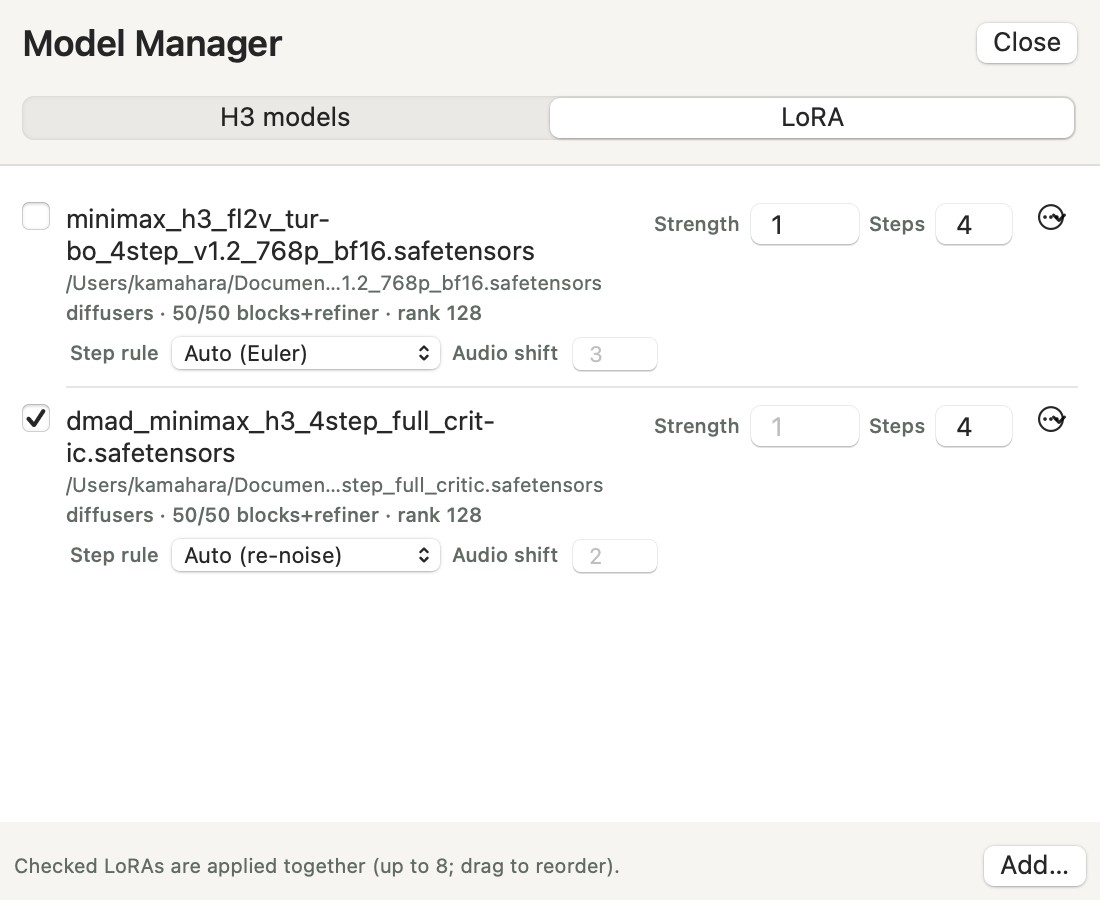
- Open “Model Manager” in the toolbar and choose the “LoRA” tab.
-
Click “Add…” and choose the
.safetensorsfile. If the file can be loaded, its format, the number of blocks it covers and its rank are shown. If it can't be loaded for MiniMax H3, the reason is shown instead. - Turn the LoRA on. Use its checkbox in the Model Manager, or turn it on under “Add-on models (LoRA)” in “Advanced Settings”. “Strength” multiplies its effect; blank means 1.
- Generate as usual. A LoRA that is on is used for every generation until you turn it off.
Turbo LoRAs and the step count
A Turbo LoRA is trained to generate in a fixed number of steps (4 or 8). If the file name contains something like 4step, the app reads that number and sets “Steps” to it when you turn the LoRA on. When you turn it off, the steps go back, unless you changed them yourself.
- With a 4-step LoRA, going from the default 20 steps to 4 makes generation much faster. The result looks different from generating without the LoRA.
- Quality drops at any other step count than the one it was trained for. If you change the steps by hand, the note in the advanced settings turns red.
- If the step count can't be read from the file name, type it in the “Steps” field in the Model Manager. Leave it blank for a regular LoRA.
- Turn on only one Turbo LoRA. Stacking several makes the effect too strong.
Step rule and audio shift
Some few-step LoRAs are trained with a particular way of stepping. In the Model Manager, each LoRA has two settings for this. Normally you can leave them on “Auto” and blank.
- Step rule: “Auto”, “Euler” or “re-noise (LCM-style)”.
- Euler is H3cApp's standard rule. The lightx2v Turbo LoRAs are trained for it.
- re-noise is the same rule as ComfyUI's “lcm” sampler, which LCM- and DMD-style LoRAs usually recommend. With re-noise, denoising reuse runs at 1.
- Auto uses the rule written in the LoRA file's metadata, and Euler if there is none. The file name is never used. The rule read from the file is shown in parentheses.
- Audio shift: sets how the audio noise is reduced. Blank uses the value in the file's metadata (or the default 3).
For example, the 4-step DMAD LoRA says “re-noise” and “audio shift 2” in its metadata, so “Auto” runs it the way it was trained. For a LoRA whose file says nothing, set these from its publisher's instructions. Run with another rule than it was trained with, a LoRA can look blurry or show ghosting.
If any LoRA that is on uses re-noise, the generation uses it. The rule and audio shift used are shown in “Settings Used…” and saved in the video's record.
Good to know
- You can stack up to 8 LoRAs. Their effects add up.
- LoRAs work with all three compute modes. Each step takes a little longer for the LoRA.
- The LoRAs that were on and their strengths are recorded in a video's settings and in projects. If you open a project whose LoRA isn't registered in the Model Manager, the app tells you it can't be used.
- “Delete” in the Model Manager only removes the LoRA from the list; the file stays.
Supported formats: diffusers / PEFT, ComfyUI and kohya (BF16 / F16 / F32). Not every LoRA works. See LoRA in the README for details.
Each LoRA comes with its own terms from whoever distributes it. Check them together with the MiniMax H3 license (see Licenses and terms).
For advanced users
Local API
H3cApp has an HTTP API reachable only from the same Mac (127.0.0.1), for driving generation from scripts. See API in the README.
Building from source
Not needed to use the app. Developer instructions are in Building from source in the README.